Getting started
Install
There are three ways to install Visual Dynamics, and the downloads page describes each in full.
A compiled package
Download it and open it; there is nothing else to set up. There are builds for macOS (Apple silicon and Intel, signed and notarized), a Windows installer and a Linux AppImage. Use this one unless you already work in Python.
The Python package
The desktop application and the scripting API are one package, so installing it gives you both: the analysis you can drive from a notebook, and the same window the installers put on your desktop.
Every release is uploaded to PyPI when it is published, so pip and
the downloads page always have the same latest version.
A contributor install
Clone the repository and install it in place, so your edits take effect without reinstalling:
pip install -e '.[dev]' adds the tools the test suite uses (pytest,
pytest-xdist, ruff and the rest).
Requirements for a Python install
A Python install needs Python 3.12 or newer. The dependencies are installed with the package: numpy, scipy, pandas, h5py, netCDF4, pint, vtk, pyvista, pyvistaqt, PySide6, pyqtgraph, openpyxl, certifi, truststore and cadquery-ocp. The last is the OpenCASCADE geometry kernel that solids (Add Block, Mesh Solids and the rest) and the STEP/IGES importer use. It has wheels for Python 3.11 to 3.14 on macOS, Windows and Linux with glibc 2.28 or newer (RHEL 8 and later), so a Python install needs one of those.
The app
visualdynamics                      # or: python -m visualdynamics
visualdynamics modal_run.nc4        # import files as it opens
A compiled package opens like any other application; the commands
above are for a Python install. visualdynamics-gui is the same
command under its older name.
The downloads page
has example projects to open on the first day: the plate the guide's
screenshots come from and the quadcopter, a model the size of a real
test article, each as one project per workflow; and two finite element
models, the BARC and the Frame-Wing. Unzip one, then use File →
Import… or drag the .vdyn onto the window. A project imported into
an empty window becomes the window's project.
The 3-D views (a geometry, the 3-D form of a plot, the MAC as bars) are drawn with OpenGL 3.2 or later, and nothing of them is loaded until the first one is shown, so the window opens without them. On Windows, that first 3-D view checks the graphics driver first. A machine that cannot draw it, such as a Remote Desktop session or a virtual machine without a graphics driver, is told what is missing, once; the window goes on without 3-D views, drawing the flat form of each plot.
The window follows the platform's light or dark appearance. Where the
platform does not say (a Linux desktop Qt cannot read, for example) or
you want something else, File → Appearance chooses Light, Dark or
System, and the choice is remembered. --theme dark (or light) on
the command line, or VISUALDYNAMICS_THEME=dark in the environment,
sets it for one launch.
The first launch of each version of this alpha opens with a disclaimer to acknowledge: the software is provided as is, and checking its numbers is up to you. File → About Visual Dynamics… shows the version, and works without the network.
File → Check for Updates… checks only when you choose it; nothing checks on startup. What it does depends on how you installed:
- The macOS app updates itself. Sparkle opens its own window, shows what is new, and installs the update in place when you say so. It usually downloads only what changed between your version and the new one, and it verifies the update's signature before installing it.
- A pip install is shown the command that updates it, for its own
Python, with a button that copies it:
python -m pip install --upgrade visualdynamics. Only the package itself is downloaded. An editable install (a clone) is not shown a command, becausegit pullis how a clone is updated. - Windows and Linux builds are told that a newer version exists, with a button that opens the download page.
Outside the macOS app, the check asks visualdynamics.org and verifies the connection against the certificates the operating system trusts. On a network that inspects HTTPS it works once the network's own certificate authority is installed on the machine, as it is for the browser. When the check fails, the status line says which part failed.
The install puts the command in the environment's own bin
directory, so it is on your PATH only while that environment is
active. From a terminal where it is not active, either activate it
first or call the command by its path; both run the same thing:
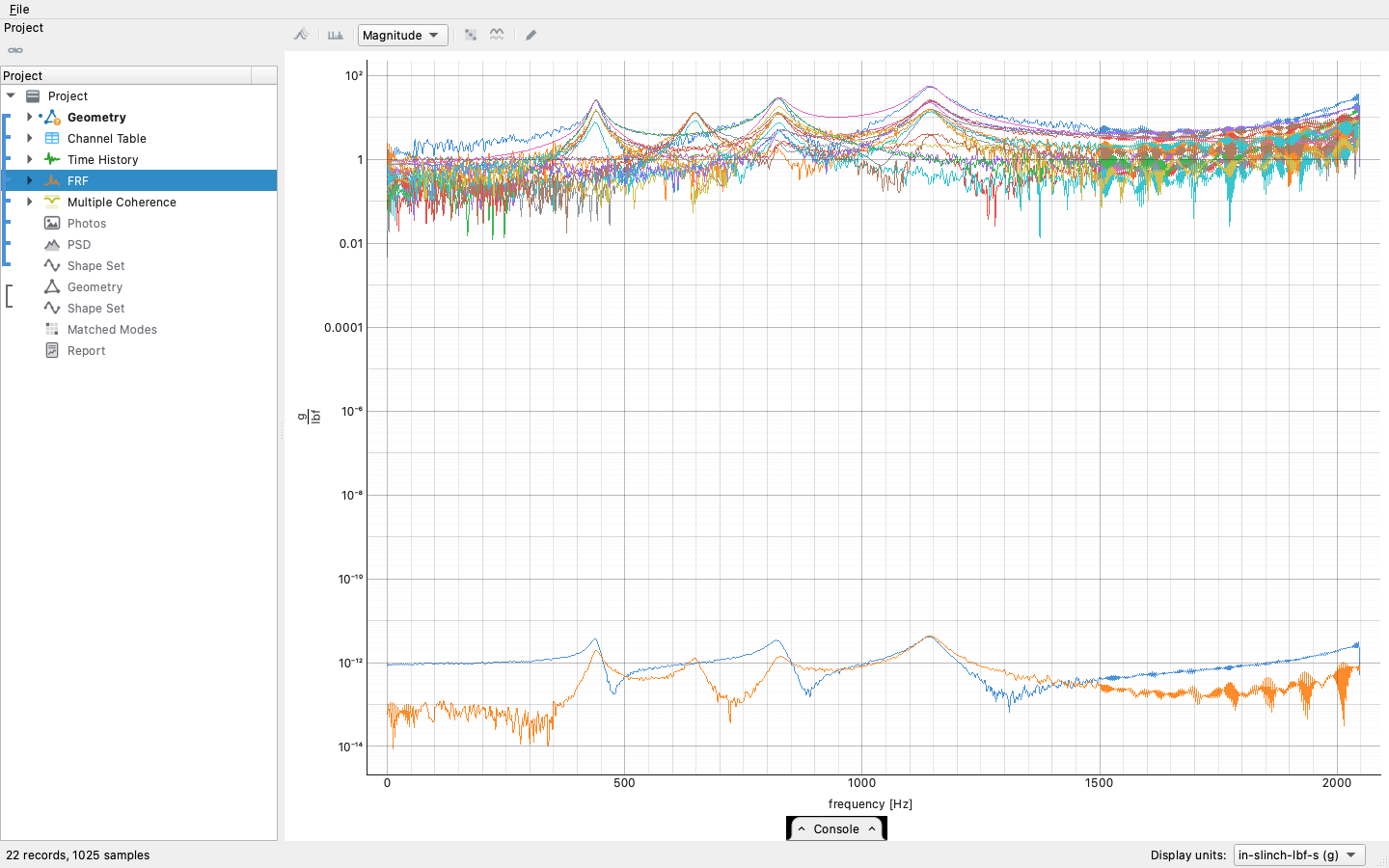
Drag files anywhere onto the window to import them: Rattlesnake runs
(.nc4) and specifications (.npz), universal files (.unv/.uff),
I-DEAS ADFs (.afu/.ati/.ash), Exodus meshes (.exo/.e),
Nastran bulk decks (.bdf/.dat/.nas) and punch eigenvectors
(.pch), Femap Neutral files (.neu), sdynpy arrays
(.npz/.npy), channel-table spreadsheets (.xlsx), CAD geometry
(.step/.iges, tessellated on import, so a McMaster-Carr download
can be dropped in directly; .3mf and .stl meshes, each part a
named element group), photographs, MATLAB files in the project's own
layout (.mat), Engineering Sciences Common Data Format files
(.h5), report templates (.vdreport) and whole .vdyn projects.
A Rattlesnake run too large for the machine's memory asks how much of
it to import, on a preview of one channel. File → Truncate
Rattlesnake File… uses the same preview to write any run, cut to the
stretch you pick, as a new .nc4 with every channel and every setting
kept. The full table of what each format carries, in both directions,
is in Importing and exporting.
Launching from a session that uses sdynpy
import sdynpy binds pyqtgraph to PyQt5 and sets QT_API=pyqt5, and
neither can be undone once a process has started. A notebook or VS
Code session that has imported sdynpy therefore cannot show the Visual
Dynamics window in the same interpreter. visualdynamics.launch_gui()
detects this and starts the app in a new process instead, returning
immediately:
import sdynpy, visualdynamics
visualdynamics.launch_gui('modal.vdyn')     # its own process; sdynpy is untouched
Pass in_process=True to insist on this interpreter (you get the
explanation if it cannot work), or in_process=False to always use a
separate process. The second is useful in a notebook, because the
window then does not block the kernel.
First steps in the window
Right-click the project row and use Set Project Type to say what kind of test this is. Select two objects and press Link on the bar above the tree to declare that they belong together. Each computation is run from the view where its settings are set: a time history's averaging view has the spectral estimates (Compute PSDs, Compute CPSDs, Compute FRFs…, Multiple Coherence and Compute Spectra), the shock view has Compute SRS, and the filter and truncate views apply their own changes. Each pane's buttons compute with the settings shown on screen. Operations with no view of their own, such as integrating, differentiating, extracting sine levels and fitting modes, are buttons on the same bar: an icon each, with the name in its tooltip, shown only when the selection is one they apply to. With the project row selected, the bar holds Generate Report.
Objects copy and paste like files. Cmd/Ctrl-C and then V in the tree duplicates them, pasting into a folder exports them, and a copy from another window brings them across. When a settings change makes a derived object out of date (more averages on the time data, a moved shock window), a refresh badge appears beside it with the reason, and clicking the badge recomputes it in place.
The same thing as a script
import visualdynamics

project = visualdynamics.Project('Beam Airplane Modal Test')
project.project_type = 'Modal Test'
project.import_file('modal_run.nc4')    # a modal run saved with its FRFs
project.import_file('test_geometry.npz')
project.geometry.define_units('m')
project.set_basis(*list(project))       # the measured side

project.compute_psds(project.basis.time_history)
project.fit_modes(project.basis.frf, bounds=(5.0, 120.0))

project.basis.frf.plot()                # the app's own plot, in a window
project.save('modal.vdyn')              # open this in the app
examples/modal_workflow.py in the repository is a longer version of
this (import, process, fit, correlate, match, plot, report). It runs as
part of the test suite, so it stays working.
Which one should I use?
Both, in either order. The app is faster for looking at data, judging it and picking; a script is faster for repeating a job. They share the objects, the rules and the file, so a project can move between them partway through a job: save from the app, load in a notebook, save again, reopen.
What a script cannot do is make the judgment calls the screen asks you for, such as which residual peak is a real mode or which MAC squares are a match. In a script those become rules (a frequency band, a MAC threshold), and you should choose those rules on purpose.
The console tab along the bottom of the window connects the two. It writes the session as Python while you work: every import, every setting and every computation, as the line that replays it, including the judgment calls (an interactive mode fit is recorded as its confirmed picks). Expand the tab, copy the part you want, and yesterday's session is today's script.